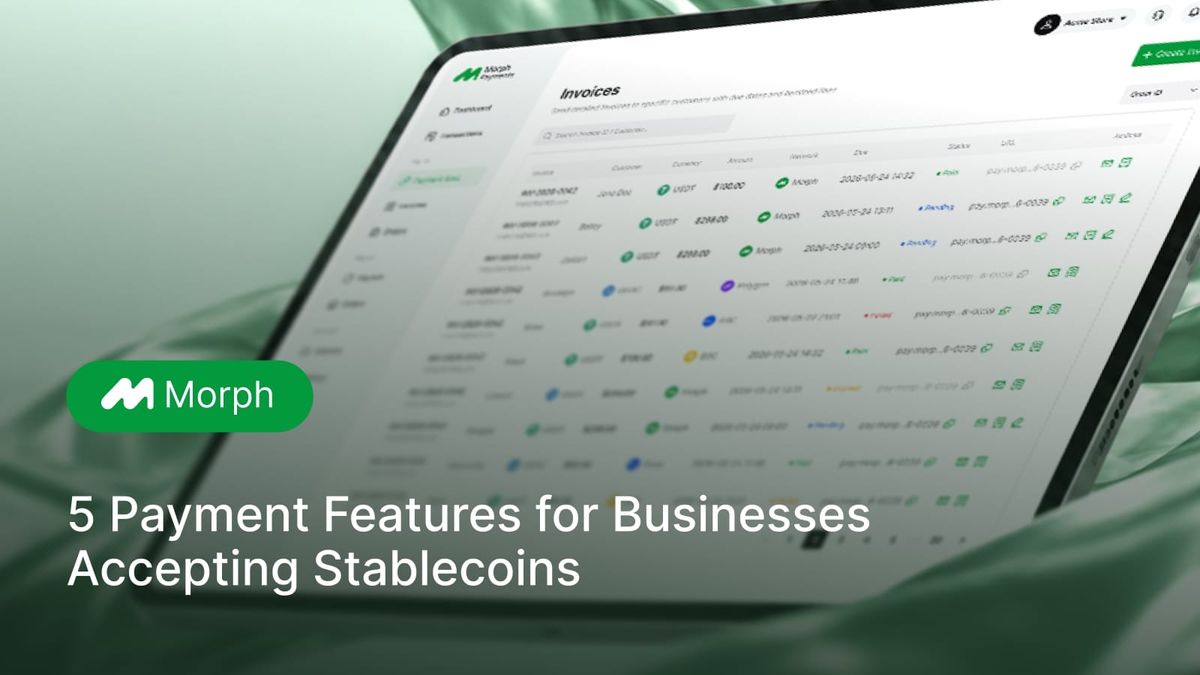
From Invoicing to Getting Paid: 5 Payment Features for Businesses Accepting Stablecoins
Download invoice and receipt PDFs, update billing details, choose where payments arrive, offer desktop checkout, and issue partial refunds.
A client needs a PDF invoice before their finance team can approve payment. Another asks you to change the billing details. A third has paid and wants a receipt for their records.
If you run an agency, do design or development work, or manage payments for a Web3 team, these are familiar requests. Clients who pay in USDC or USDT still need invoices, payment confirmations and records they can keep.
The latest Morph Payments update adds five features to help you handle those steps, from preparing an invoice to managing what happens after payment.
Give your client an invoice before payment and a receipt afterwards
A payment link gives your client a way to pay. Their finance team may also need a document to review, approve or file.
You can now download PDFs from your invoices in Morph Payments. The document you receive depends on the invoice’s payment status:
- Unpaid invoices, including pending or expired invoices: download an Invoice PDF.
- Paid invoices: download a Payment Receipt PDF with transaction details.
The receipt includes the transaction hash, payer address, and payment and receiving networks. You can email the PDF to your client, save it with the project’s records or print a copy.
Neither the Invoice PDF nor the Payment Receipt PDF is a tax invoice. These documents have no tax authority validation and cannot be used for tax reporting or deductions.
Why does the PDF show a different address from checkout?
The PDF lists your final receiving address and network: where your business receives the payment.For a manual transfer, checkout displays a collection address for the token and network the client selects. The payment is then routed to your final receiving address. The client’s payment network may differ from your receiving network.
To pay, clients first open the invoice’s payment link. At checkout, they can connect a wallet or choose a manual transfer. If they choose a manual transfer, they should use the address, token and network shown at checkout. The receiving details on the PDF identify the merchant’s final settlement destination, not the address clients should use to pay the invoice.
This distinction separates the details your business needs for its records from the instructions your client needs to complete the payment.
Correct billing details without starting again
You have sent an invoice, then your client asks for a different billing email or a revised due date. Recreating it means more work and another link to keep track of.
Morph Payments now lets you edit a pending invoice after creating it. Payment links can also be edited before their first payment.
Once a payment link has a payment record, its amount fields are locked. Paid and expired invoices cannot be edited.
For similar projects or repeat clients, you can duplicate an existing invoice or payment link into a new draft, then adjust the details for the next job.
Choose the wallet where your business receives payments
Your team may already use an external wallet for project income or business funds. Previously, receiving a payment in your Morph Payments TEE wallet and then moving it to that external wallet required a separate withdrawal.
You can now add an external receiving address in Settings → Wallet, then select it when creating a payment link or invoice. Payments settle to that destination, removing the separate withdrawal step.
External receiving addresses are supported across the networks currently available on Morph Payments.
There are two distinctions to keep in mind: the dashboard’s Total Assets balance covers your TEE wallet, not external wallet balances, and payouts made from Morph Payments continue to use funds in your TEE wallet.
Give clients a complete desktop checkout experience
A client may open your invoice on a laptop but use their phone to pay. They should be able to return to the laptop and see what happened.
Invoice checkout now provides a full desktop experience. When a client pays on mobile, the desktop page updates automatically as the payment progresses, including while it is waiting for network confirmation and when payment is complete.
Refund the amount that needs to go back
A project’s scope changes after payment. Part of a service is cancelled. You and your client agree that only a portion of the payment should be returned.
Morph Payments now supports partial refunds alongside full refunds. You can specify an amount greater than zero and up to the amount received for the order.
Each order currently supports one refund only. If you issue a partial refund, you cannot issue another refund for the remaining amount through that order in Morph Payments.
For orders settled to an external receiving address, you send the refund yourself, then submit the refund transaction hash in Morph Payments.
Put your next client payment in order
For your next invoice, check the billing details and choose the receiving wallet you want to use. Download the Invoice PDF if your client needs a document for approval, and direct them to the invoice link to pay.
Once payment is complete, download the receipt and keep it with the project’s records.
Create a Morph Payments account to manage your next stablecoin invoice from billing to payment.